
Setting up AL IPTV on your Smart TV is a quick and straightforward process that takes just 5-10 minutes. Follow this simple guide to start enjoying IPTV channels on your TV.
Choosing an IPTV App
To get started, you’ll need to download an IPTV app from your Smart TV’s App Store. Here are some popular options:
IPTV Smarters Pro (Free for life)
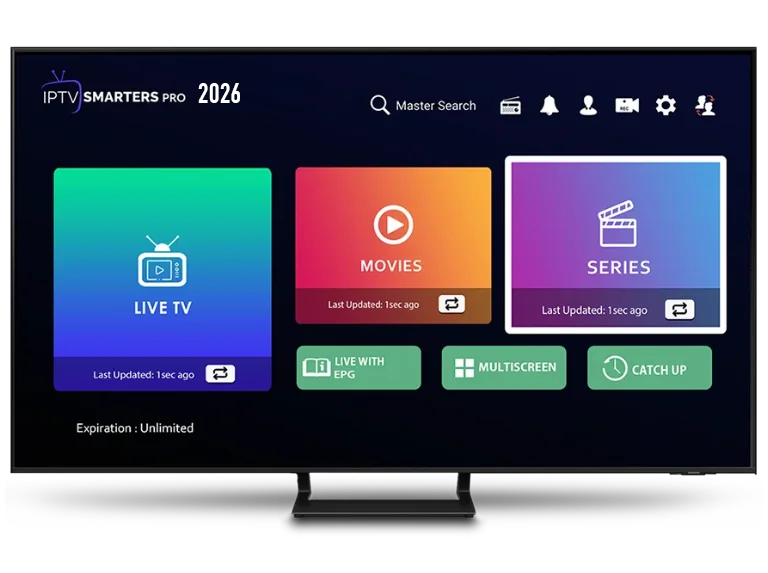
Features: This app has a great user interface and is free to use. It’s easy to set up since you don’t need to upload your playlist to a different site. However, it has some limitations.
- Download the App: Go to your TV’s App Store and search for IPTV Smarters Pro.
- Install and Launch: Once installed, open the app.
- Enter Xtream Codes API: Use the login details provided in your email. Make sure to use the server link specified for this app, as noted in your email.
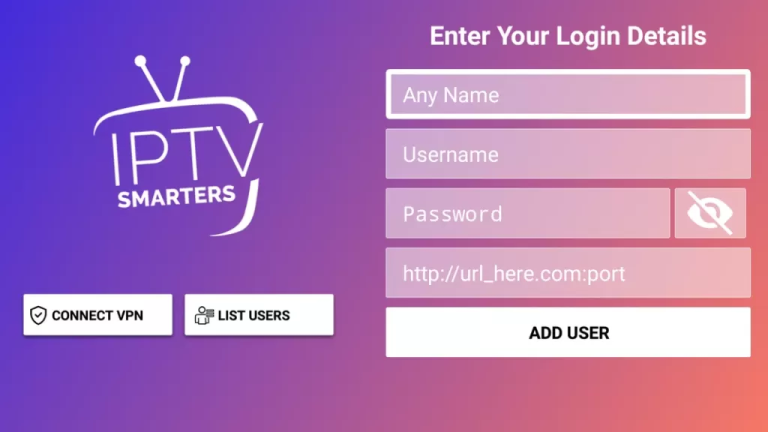
First Box: You can put ANYTHING
Second Box: Your Username (Found on EMAIL/WhatsApp)
Third Box: Your Password (Found on EMAIL/WhatsApp)
Forth Box: Server URL (Found on EMAIL/WhatsApp) – Always Starts with HTTP://
Notes
- You can follow these same steps for any other PAID IPTV app you choose.
- Make sure when you paste m3u link on app site, its HTTP! not https! (this happens a lot!)
- Almost all Smart TV apps are paid, except for IPTV Smarters Pro, which can be a bit clunky and occasionally glitches. You might consider opting for a more reliable option like IBO Player Pro or HOT IPTV.