
You’re in the right place if you’re looking to set up IPTV on your phone, Android TV, or Android box. In this guide, we’ll show you how to install and use some of the best IPTV players available, so you can enjoy smooth and reliable streaming on your device.
Whether you choose a free or premium app, you’ll have plenty of options to enhance your IPTV experience. We’ll also guide you step by step on how to download and install IPTV apps on your Firestick, helping you start watching your favorite channels in just minutes.
Best IPTV Players for Android
To enjoy IPTV on your Android devices, you will need an IPTV player. Here are some of the best options available:
IPTV Smarters Pro (Free)
Setting Up IPTV on Android Boxes and Android TVs
To set up AL IPTV on Android boxes and Android TVs, follow these steps:
Download IPTV Apps from Google Play
A variety of IPTV apps are available for straight download from Google Play. While some of these apps provide a premium experience with extra features, others are available for free. The top applications that may be downloaded directly:
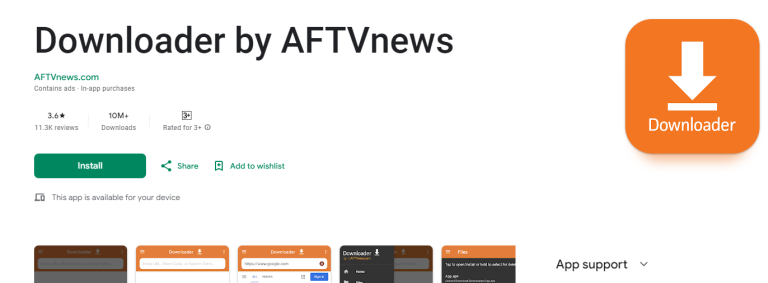
For this method, you will need to download the Downloader app by AFTVnews from Google Play. Follow these steps:
- Download the Downloader App:
- Go to Google Play and search for “Downloader by AFTVnews“
Go to your device’s Settings.
- Enable Install from Unknown Sources:
- Go to your device’s
Settings. - Navigate to
SecurityorApps & Notifications. (this changes from device to device, sometimes you ll have to enable developper options first!) - Enable
Install from Unknown Sourcesfor the Downloader app.
- Go to your device’s
- Install IPTV Smarters Pro:
- Open the Downloader app.
- Enter the code
6468112to download IPTV Smarters Pro. - Once installed, open the app.
- Log in Using Xtream Codes API:
- Choose the option to log in with Xtream Codes API.
- Enter your login details provided in your email or WhatsApp.
Setting Up IPTV on Android Phones
The process for setting up IPTV on Android phones is similar to Android boxes and TVs. Follow these steps:
- Choose and Install an IPTV App:
- Download XCIPTV, TiviMate, or IPTV Smarters Pro (Using downloader)
- Enter Your Subscription Details:
- Open the app and enter your subscription login details. Always use Xtream Codes API login mode.
- Follow the app’s prompts to load your IPTV channels.
Troubleshooting
If you see an “Authorization Failed” message, please double-check your inputs, as this error is often caused by a typo. If you have verified everything and still encounter an “Authorization Failed” or “Account Expired” message, try turning off your VPN and attempt again.
If you find trouble in setup or you encountering difficulties through setup, send us an email on contact@aliptv.com or on WhatsApp here.