
The Ultimate Step-by-Step Guide
Learn how to install IPTV on Firestick step by step in this complete 20256 guide.
Set up IPTV easily on all Fire TV devices, including Firestick 4K and Fire TV Cube, and start streaming live TV channels, movies, and series with one of the most popular IPTV apps. Enjoy a smooth installation process, simple configuration, and powerful features like EPG integration and multi-screen support.
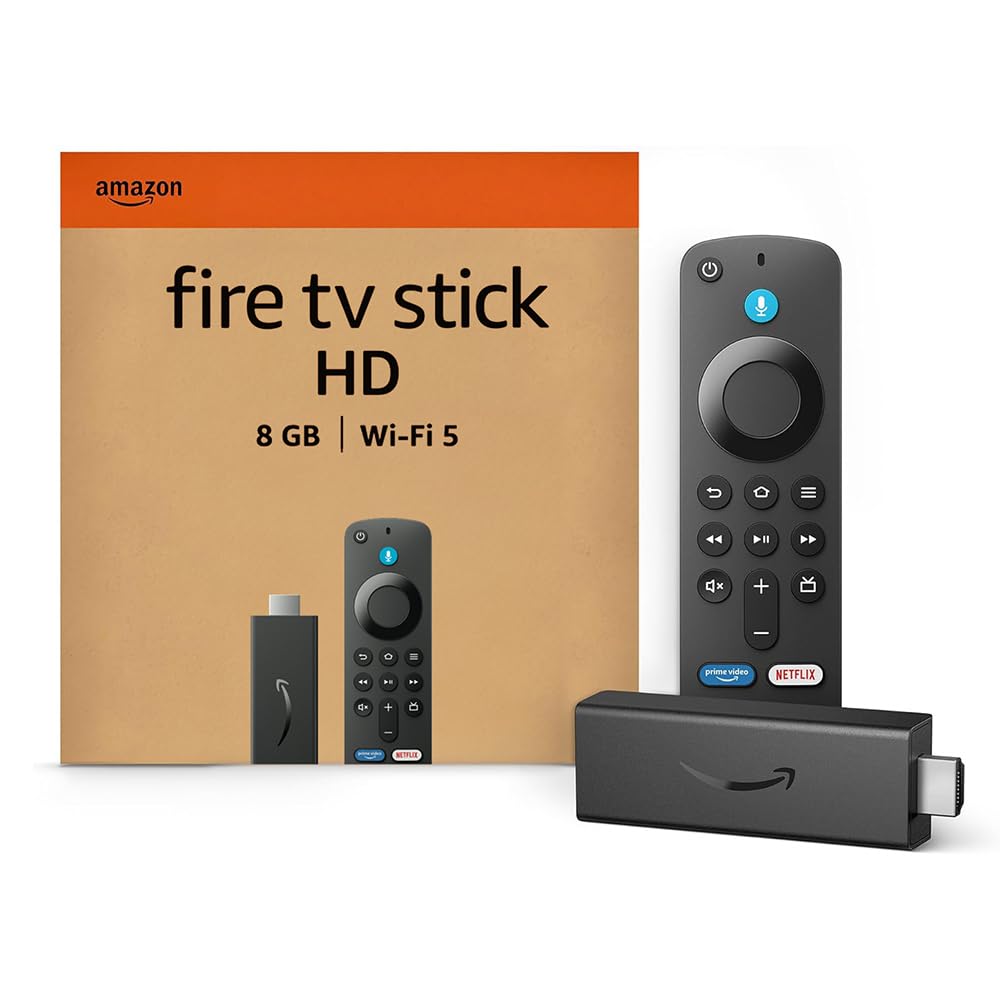
Setting up IPTV on your Firestick is a simple process that only requires installing an app and entering your IPTV login information. It might sound complicated, but it’s easier than you think!
In this guide, we will focus on using IPTV Smarters Pro, a popular app for streaming IPTV content.
We’ll walk you through each step to download and install IPTV apps on your Firestick so that you can start enjoying your favorite channels in no time.
Choosing the Right IPTV App
There are several IPTV apps available that you can use to stream content on your Firestick. Popular choices include IPTV Smarters Pro, which is free and widely used by many. It works well, but if you find the user interface clunky or slow, you might want to try other apps. Below, you’ll find downloader codes for different apps—some are free, and some require payment. For now, let’s stick with IPTV Smarters Pro. All of these apps follow the same setup method below! if you find trouble through setup, feel free to contact us on whatsapp and we will help you.Some good recommended ones :
- IPTV Smarters Pro (Downloader code: 6468112)
- XCIPTV (Downloader Code: 114407) – Google Play
- Tivimate (Paid) (Downloader Code: 185194) – Google Play
- HOT IPTV (Paid) (Downloader Code: 395800)
- IBO Player Pro (Paid) – Official Site
What You Need to Know
Before we start, here’s a quick overview of what you need to do:
- We will using IPTV Smarters Pro, but there are other options available if you prefer.
- After installing the app, you’ll need to log in with your IPTV subscription information.
Let’s dive into the step-by-step process!
How to Set Up IPTV on FireStick?
Note: If you watch this video, when you get to downloader part — use downloader codes found below!
Follow these steps to install IPTV Smarters Pro on your Firestick:
- From the home screen of your device, hover over the Find option.
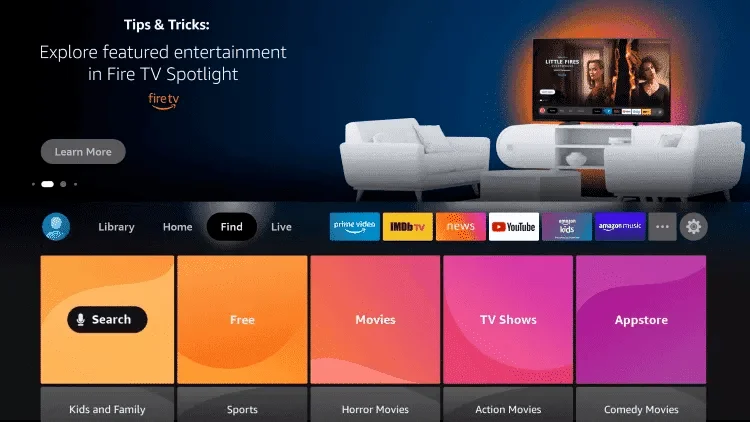
Click Search.
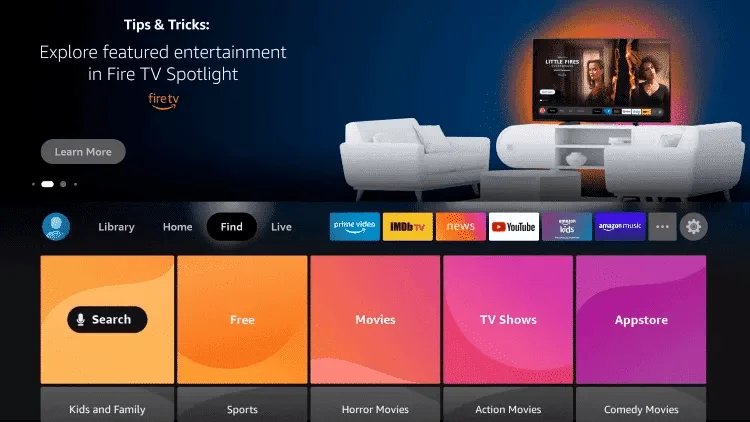
Search for and select Downloader
Choose the Downloader App.
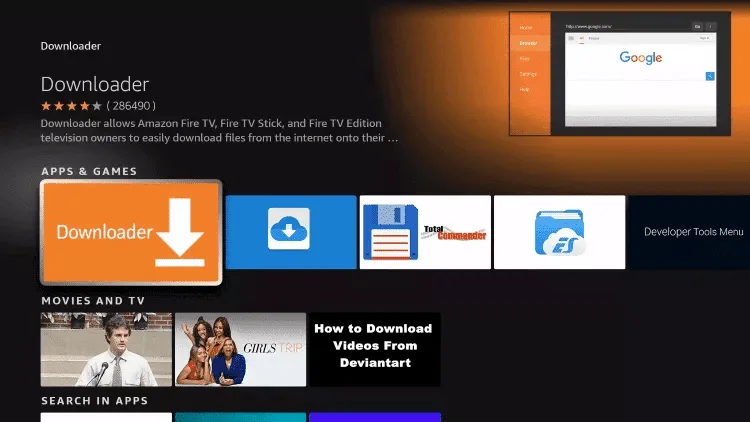
Click Download.
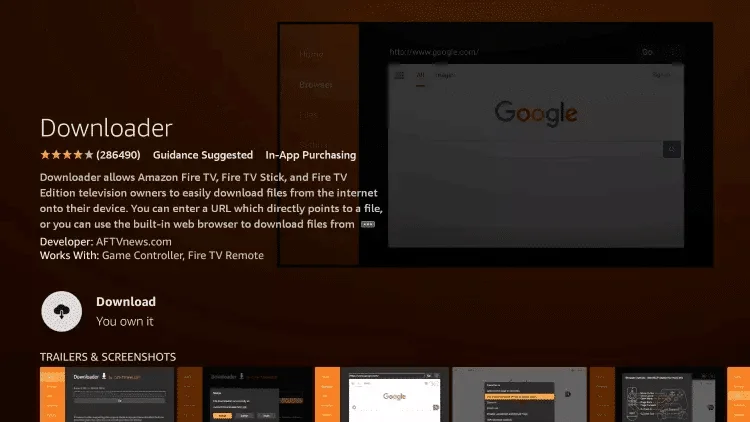
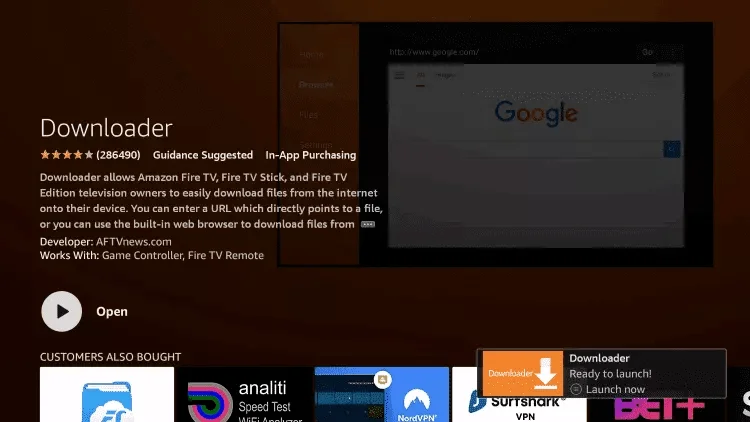
Once the app finishes installing click Open.
Return to the home screen and open Settings.
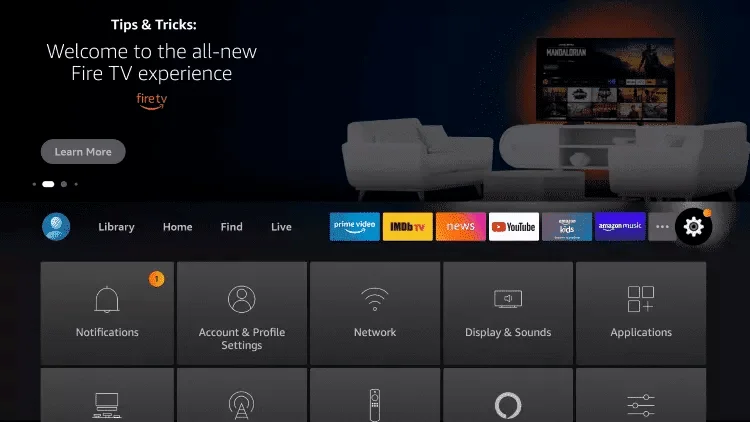
Click My Fire TV.
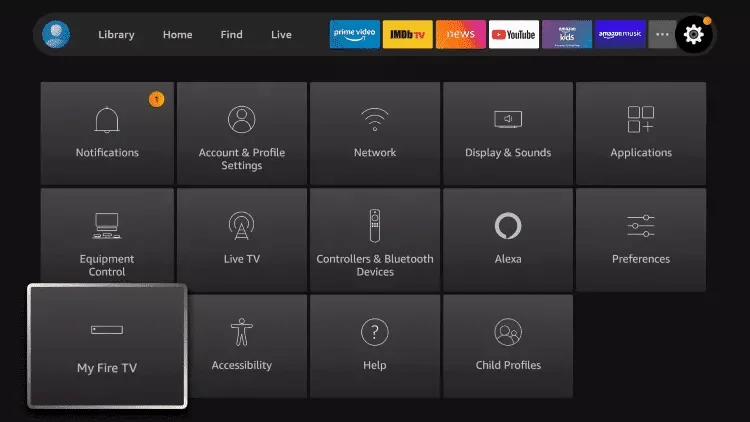
Choose Developer options.
█ If you dont have developper options enabled, do the steps shown on the video below or click here.
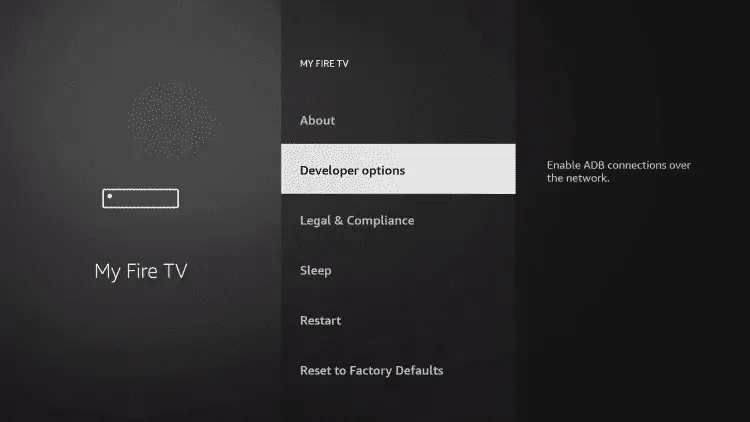
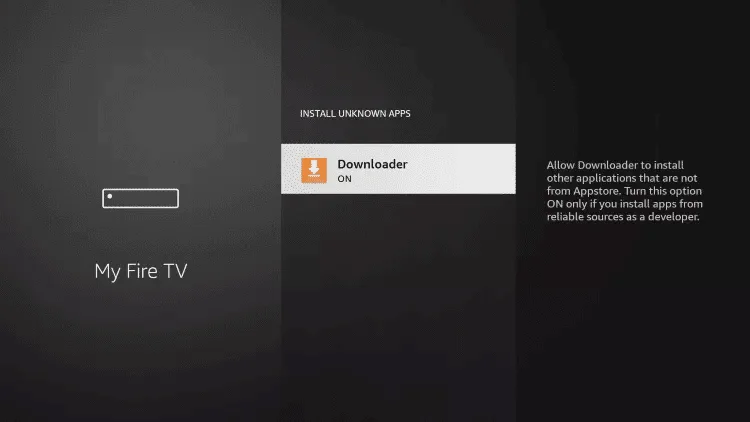
Click Install unknown apps.
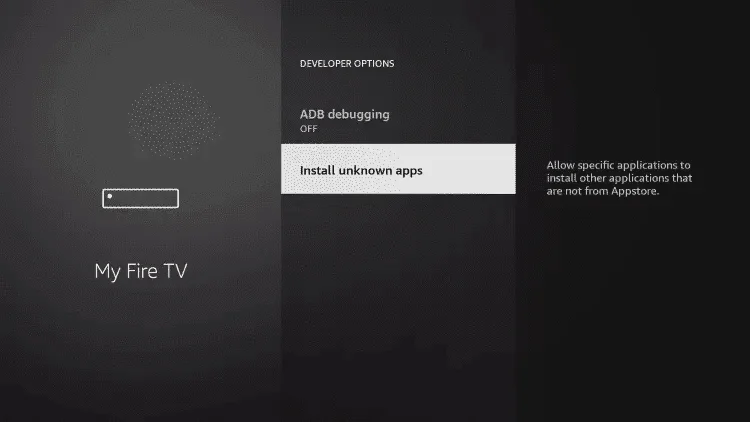
Find the Downloader app and click it.
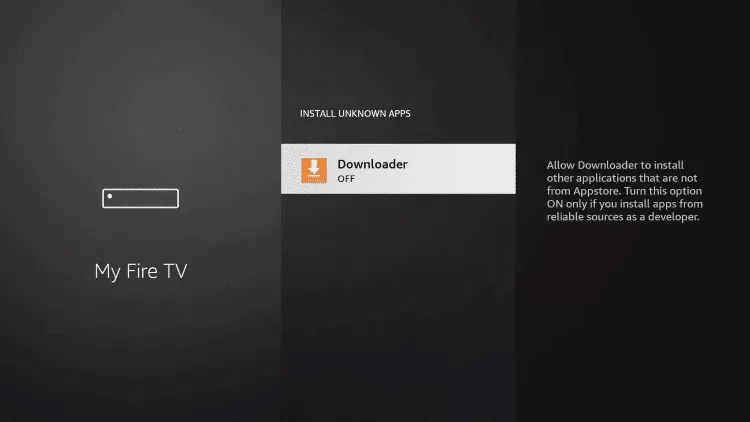
This will turn Unknown Sources to On for the Downloader app. This will enable side-loading on your device.
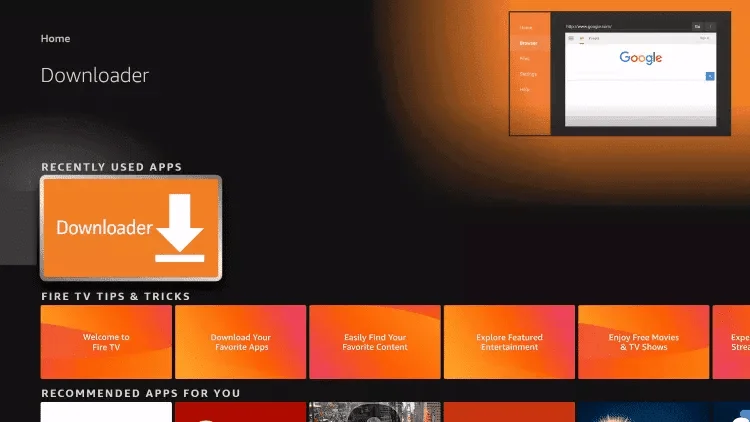
Launch Downloader.
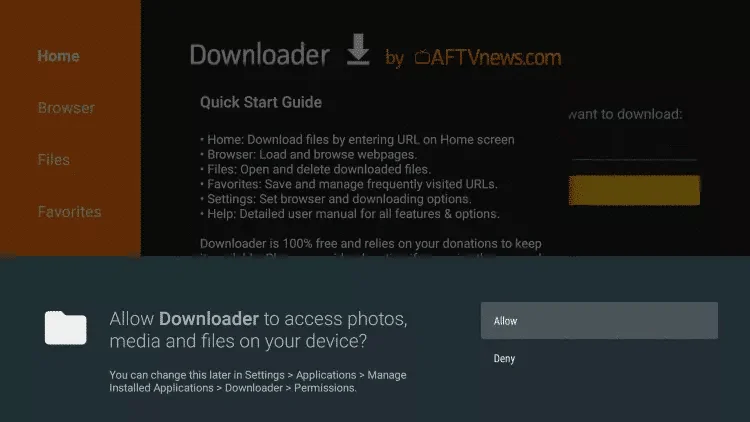
Click Allow.
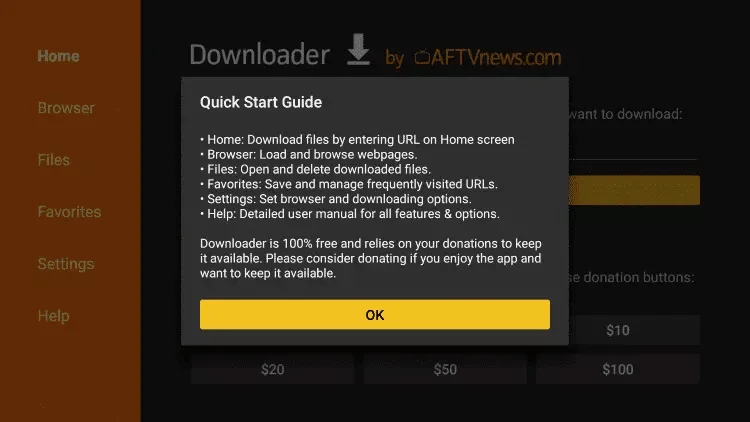
Click OK.
Type the following code in the link part: 6468112
Wait for file to download.
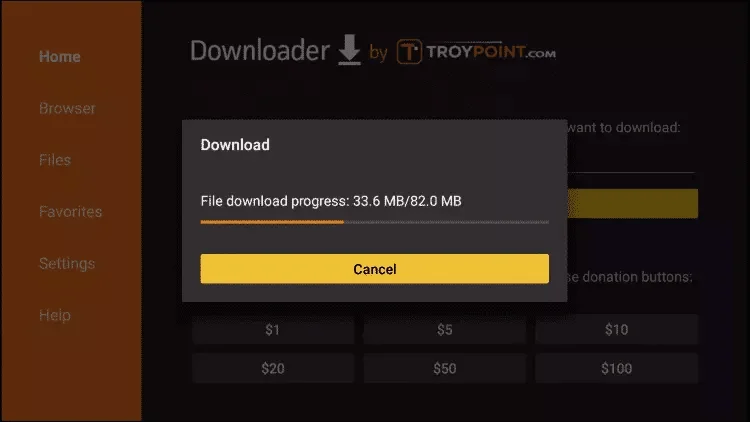
Click Install.
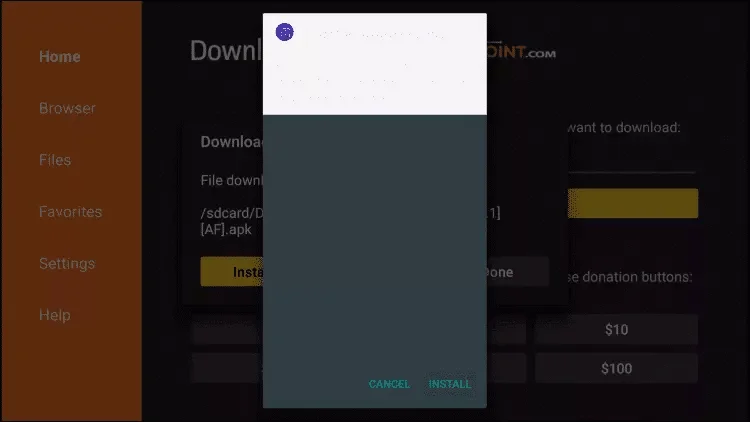
Click Done.
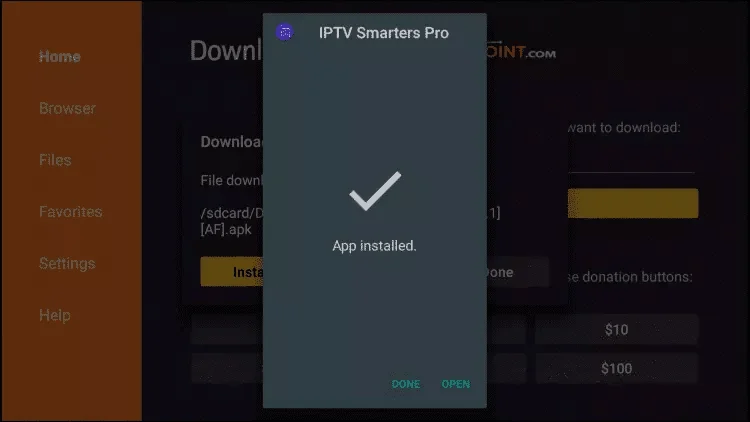
Once installed, open it and choose login with Xtream Codes API and enter the login details you received on Email or WhatsApp.
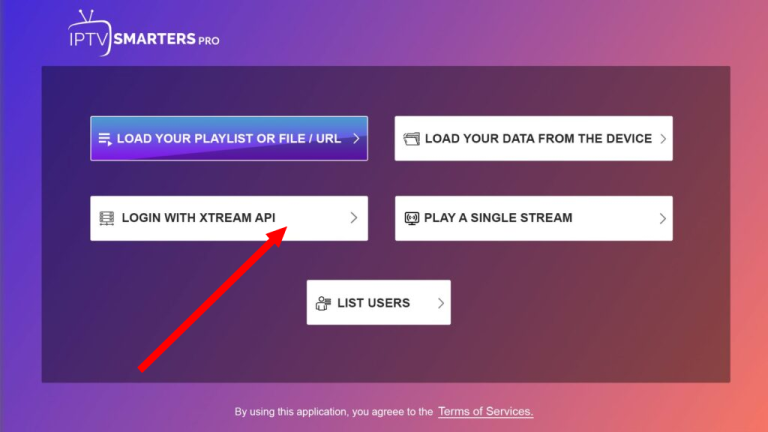
Once installed, open it and choose login with Xtream Codes API and enter the login details you received on Email or WhatsApp.
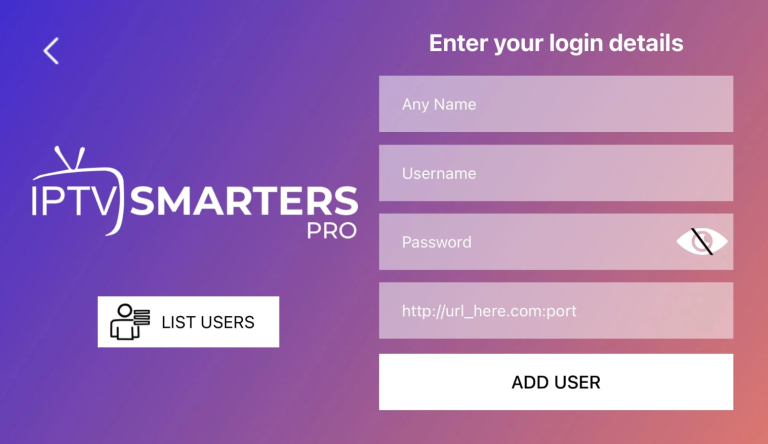
Enter your IPTV Subscription login details.
- First Box:You can put ANYTHING
- Second Box: Your Username (Found on EMAIL/WhatsApp)
- Third Box:Your Password (Found on EMAIL/WhatsApp)
- Forth Box: Server URL (Found on EMAIL/WhatsApp) – Always Starts with http://
If you see an “Authorization Failed” message, please double-check your inputs, as this error is often caused by a typo. If you have verified everything and still encounter an “Authorization Failed” or “Account Expired” message, try turning off your VPN and attempt again.
If you find trouble in setup or you encountering difficulties through setup, send us an email on contact@aliptv.com or on WhatsApp here